
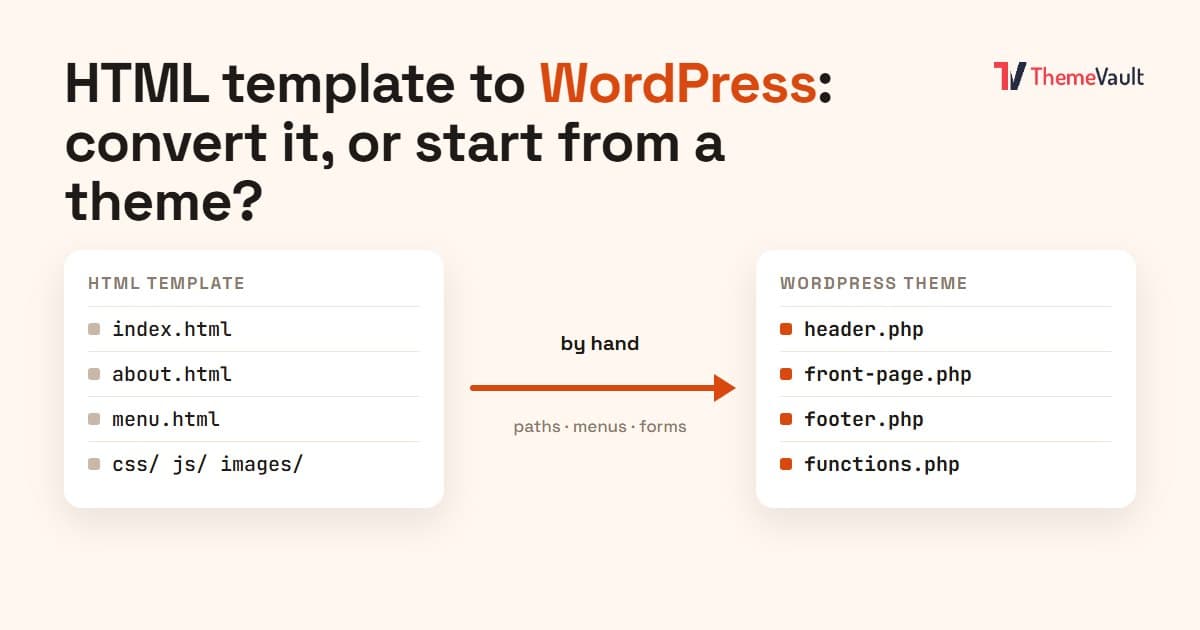
You found an HTML template you love, and now you want it on WordPress, so you (or a client) can change the text, add a dish to the menu or publish a post without opening a code editor. Good news first: it can be done, and the first part is easier than it looks. The less good news is that “it shows up in WordPress” and “you can run your business from WordPress” are two very different finish lines, and most tutorials stop at the first one.
To write this honestly, we did the conversion ourselves. On 3 November 2026 we took our free Bistrofeast restaurant template (eleven HTML pages, Bootstrap 5, the usual css, js, fonts and images folders) and turned it into a WordPress theme on a clean WordPress 7.1 site, the way a developer would. Below is every step, the mistakes we made on the way, how long it took, and the point where we stopped and asked whether it was worth it.
The short answer
If you’re a developer, or you want to learn how WordPress themes work, converting an HTML template is a very good exercise and you can have the home page running in an afternoon. If you need a working business site (editable pages, a menu you can update, a booking or contact form that actually sends), converting it yourself is a long project, and starting from a theme that was built for WordPress is usually the cheaper, faster route. There’s also a middle way: rebuild the design in a page builder. We cover all three.
What “converting HTML to WordPress” actually means
An HTML template is a set of finished pages. Every word, price and photo is typed straight into the .html files. WordPress works the other way round: content lives in a database, and the theme is a set of PHP templates that pull that content in and wrap it in your design. So a conversion has two halves:
- Making WordPress show the design. Splitting the HTML into a header, footer and page templates, loading the CSS and JavaScript properly, fixing paths and links, turning the nav into a WordPress menu.
- Making the content editable. Replacing the hard-coded text, menus, team cards, galleries and forms with things you can manage from wp-admin.
The first half is mostly mechanical. The second half is where the hours go. Keep that split in mind, because it explains almost everything below.
Step 1: the version everyone tries first
The quickest experiment is to copy the template folder into wp-content/themes, add a style.css with a theme name at the top (WordPress won’t list a theme without it), rename index.html to index.php and activate it under Appearance → Themes. WordPress accepts it straight away. Then you open the site:
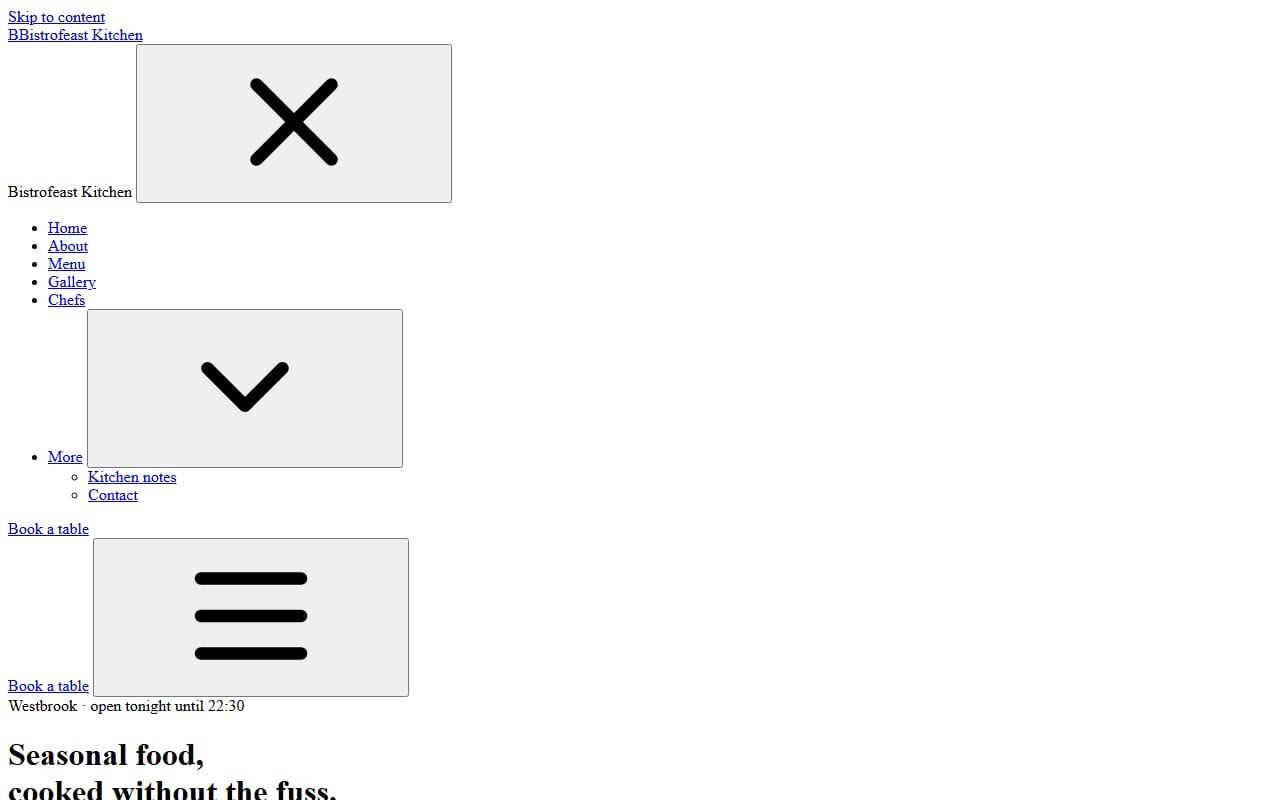
That’s what we got: 0 of 33 images and 22 failed requests. Every stylesheet, script and photo returned “not found”. The reason is simple once you see it. The template says href="css/style.css", and the browser looks for that next to the page’s address. In the HTML version that was the template folder. In WordPress the page lives at your site’s root, so it asks for yoursite.com/css/style.css, which doesn’t exist. The files are really in wp-content/themes/your-theme/css/.
Step 2: make WordPress show the design properly
This is the classic theme conversion. On our template it came down to six jobs.
Split the page into header, footer and template
Everything from <!DOCTYPE html> down to the end of the site header goes into header.php. The footer and closing tags go into footer.php. The home page’s sections go into front-page.php, wrapped in get_header() and get_footer(). You also need an index.php as the fallback for every other page; ours prints the page title and the editor content between the same header and footer.
Load the CSS and JavaScript the WordPress way
Delete the template’s <link> and <script> tags and load the same files from functions.php:
add_action( 'wp_enqueue_scripts', function () {
  wp_enqueue_style( 'bootstrap',
    get_theme_file_uri( 'css/bootstrap.min.css' ) );
  wp_enqueue_style( 'bistrofeast',
    get_theme_file_uri( 'css/style.css' ),
    array( 'bootstrap' ) );
  wp_enqueue_script( 'bistrofeast',
    get_theme_file_uri( 'js/main.js' ),
    array(), null,
    array( 'strategy' => 'defer' ) );
} );
Then add <?php wp_head(); ?> just before </head> and <?php wp_footer(); ?> just before </body>. Those two lines are where WordPress prints your styles and scripts, plus everything plugins add (SEO tags, analytics, the admin bar). Skip them and many plugins quietly stop working, because they have nowhere to print their code. While you’re in header.php, swap the hard-coded <html lang="en"> and <body class="..."> for language_attributes() and body_class(), and let WordPress print the page title by adding add_theme_support( 'title-tag' ).
Fix every image path, including the hidden ones
Each images/... path needs the theme folder in front of it: <?php echo esc_url( get_theme_file_uri( 'images/hero.jpg' ) ); ?>. Our home page alone had 41 of them. Most are in plain src attributes, but watch for the ones that aren’t. Bistrofeast, like many modern templates, lazy-loads background photos with an attribute (data-tv-bg="images/gallery-1.jpg") that its JavaScript reads later. Miss those and the page looks fine at the top, then shows grey boxes further down.
Turn page links into WordPress links
Links such as about.html and reservation.html point at files that no longer exist. Replace them with home_url( '/about/' ) and so on, and create those pages in wp-admin.
Make the navigation a real WordPress menu
Register a menu location (register_nav_menus()), build the menu under Appearance → Menus, and print it with wp_nav_menu(). This was the fiddliest part of our test. WordPress prints its own class names (menu-item, sub-menu), but the template’s CSS and JavaScript expect its own (tv-nav__item, tv-nav__link, a caret button for drop-downs). We had to write a small custom menu walker, about 25 lines of PHP, to print the template’s exact markup so the mobile menu and drop-down kept working.
Remove the duplicate meta tags
The template has its own <title>, description and social sharing tags. WordPress and your SEO plugin print those now, so delete the template’s copies. A small warning from experience: we first rewrote the image paths and then removed the old tags, and a broken leftover of the sharing image tag ended up as stray text at the very top of the page. Clean the head first, then fix paths.
After those six jobs, the home page in WordPress matched the HTML demo exactly, with no failed requests.
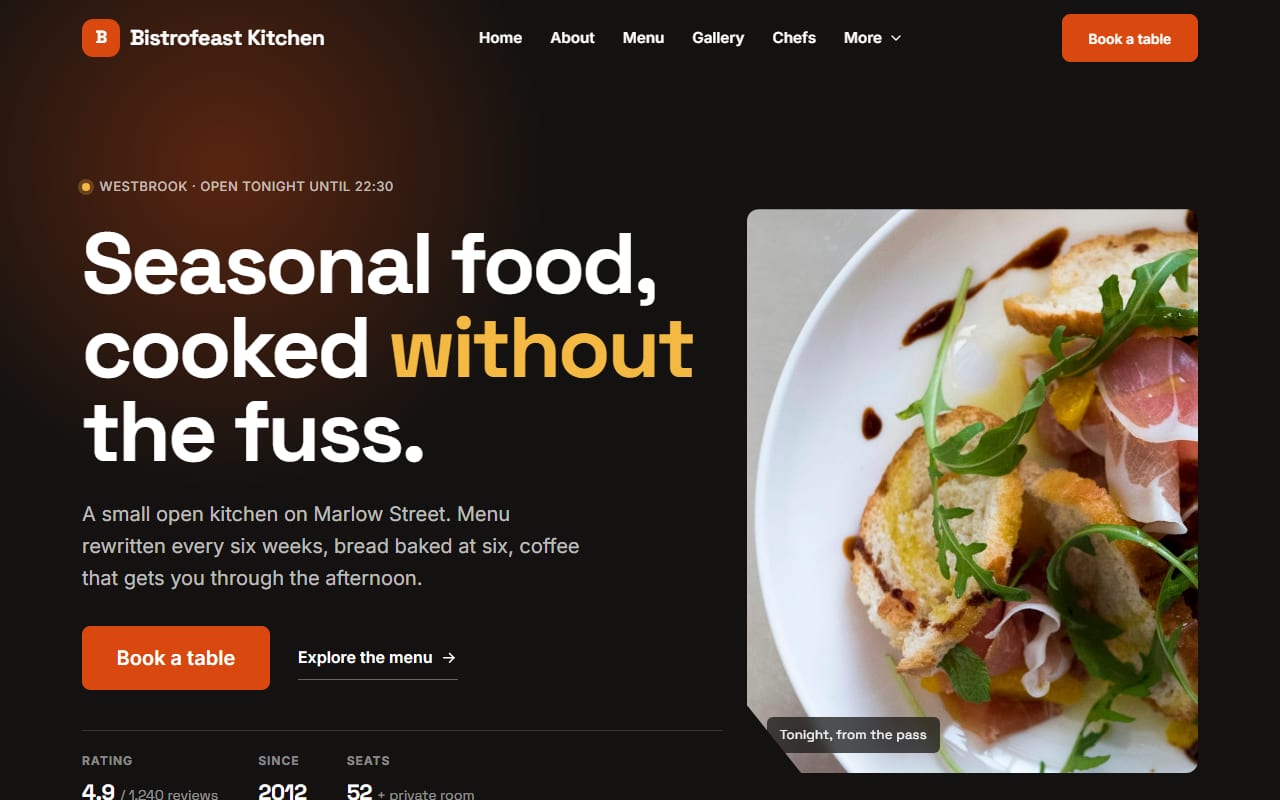
How long did that take? About 30 minutes for us, and that’s the flattering number: we know this template inside out and scripted the edits. For someone doing it by hand for the first time, an afternoon to a day for the home page is more realistic.
Step 3: the part that takes the real time
This is where we stopped celebrating. With the home page looking perfect, we tested what an owner would actually do with the site.
We clicked “About”. We got a blank page with the word “About” and the footer. The template’s About design (its story section, numbers, team) didn’t come across, because we had only converted the home page. Each of the other ten HTML pages needs its own PHP template. Worse, the site name and the menu had disappeared: the template’s header has white text designed to sit over the dark home page photo, so on a plain white inner page it was white on white.
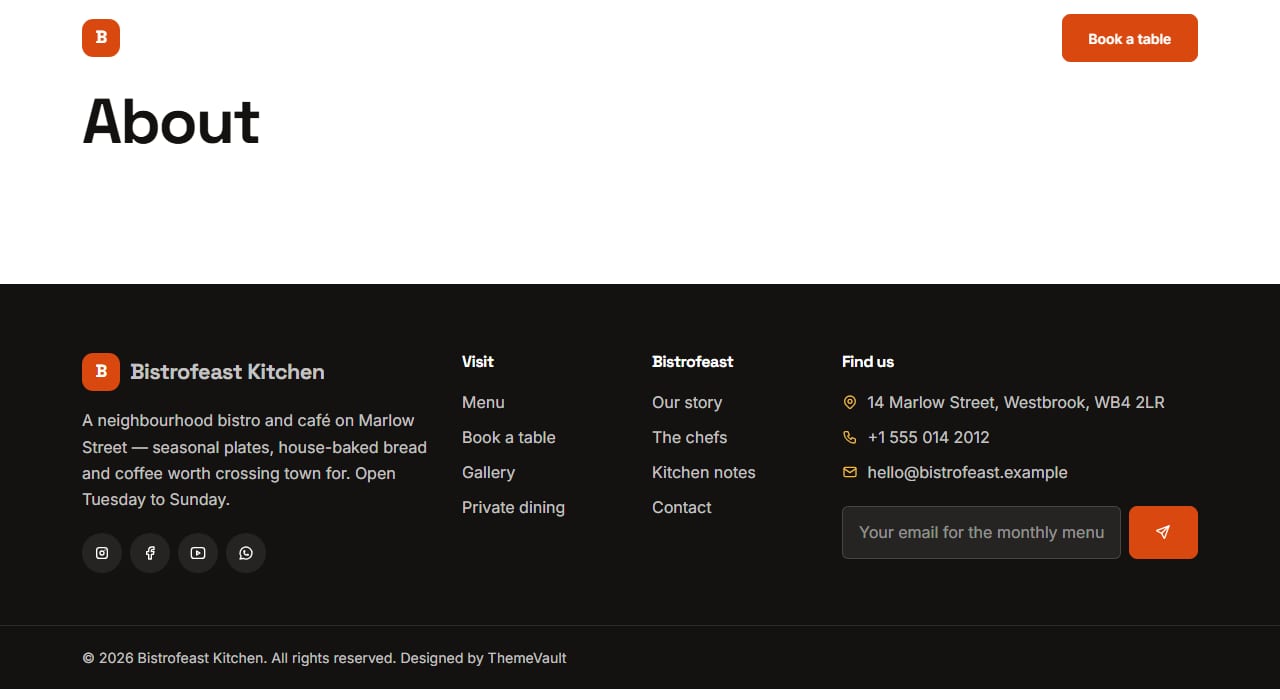
We tried to change the headline. We created a Home page in WordPress, typed a new headline into the block editor, set it as the front page and published. The site still said “Seasonal food, cooked without the fuss.” Of course it did: that text lives in front-page.php. Every headline, price, chef and review on the converted site is still typed into a PHP file. To change it you edit code, which is exactly what you were trying to get away from.
We tested the booking form. It showed “Thank you, your message has been sent.” Nothing was sent anywhere. Like most HTML templates, Bistrofeast’s forms only simulate a send. The template’s own JavaScript says so in a comment, asking you to connect it to a form service or your own code. On a converted WordPress site that’s easy to miss, and for a restaurant it means every booking request quietly disappears. If you convert, test every form with a real submission and connect it to something (a form plugin such as Contact Form 7, WPForms or Fluent Forms, or your own handler).
To finish the job properly you’d still need to:
- build a template for each remaining page (or a page header and blocks that work on any page);
- make the text and photos editable, typically with block patterns, custom blocks, the Customizer or a field plugin such as ACF;
- turn repeating things (dishes, chefs, gallery photos, reviews) into records you can add in wp-admin, so the menu updates when you add a dish;
- make the blog pages pull real WordPress posts instead of the template’s sample cards;
- wire up the forms and test that bookings actually arrive;
- check mobile, run the theme check and keep it updated as WordPress changes.
Done properly, that’s days of developer work for a template this size, not hours. It’s worth doing if you’re learning, if the template is small (a one-page site with no forms), or if you’re a developer building a theme you’ll reuse. It’s rarely worth doing to save money on one business site.
The middle way: rebuild it in a page builder
A popular alternative is to install a page builder such as Elementor on a lightweight theme and rebuild the design section by section, copying the template’s colours, fonts and photos. You skip the PHP entirely, and the result is editable by dragging and typing. The trade-offs: it’s a rebuild by eye rather than a conversion, so expect small differences from the original; complex effects in the template’s JavaScript won’t come along; and a bigger site with headers, footers and blog templates may need the builder’s paid version. If you go this way, our guide to installing an Elementor template kit explains the free-versus-Pro details we found when testing.
Or start from the WordPress version
The third route is not to convert at all, and to start from a theme that was built for WordPress in the first place. For Bistrofeast that’s exactly why we made a WordPress edition of the same design. Everything step 3 says is missing is already done:
- Every page (Home, About, Book a table, Contact, Thank you) is built from Bistrofeast blocks, one block per section, and you edit the text, photos and buttons in the editor’s side panel.
- Menu items, chefs, gallery photos, reviews and bookings are records in wp-admin, so adding a dish adds it to the menu page.
- The booking form works and saves each request under Bookings in wp-admin.
- A one-click demo import (Appearance → Import demo content) builds the pages, menu and sample content in about a minute.
- No page builder needed: it runs on WordPress 6.5 or newer and PHP 8.0 or newer.
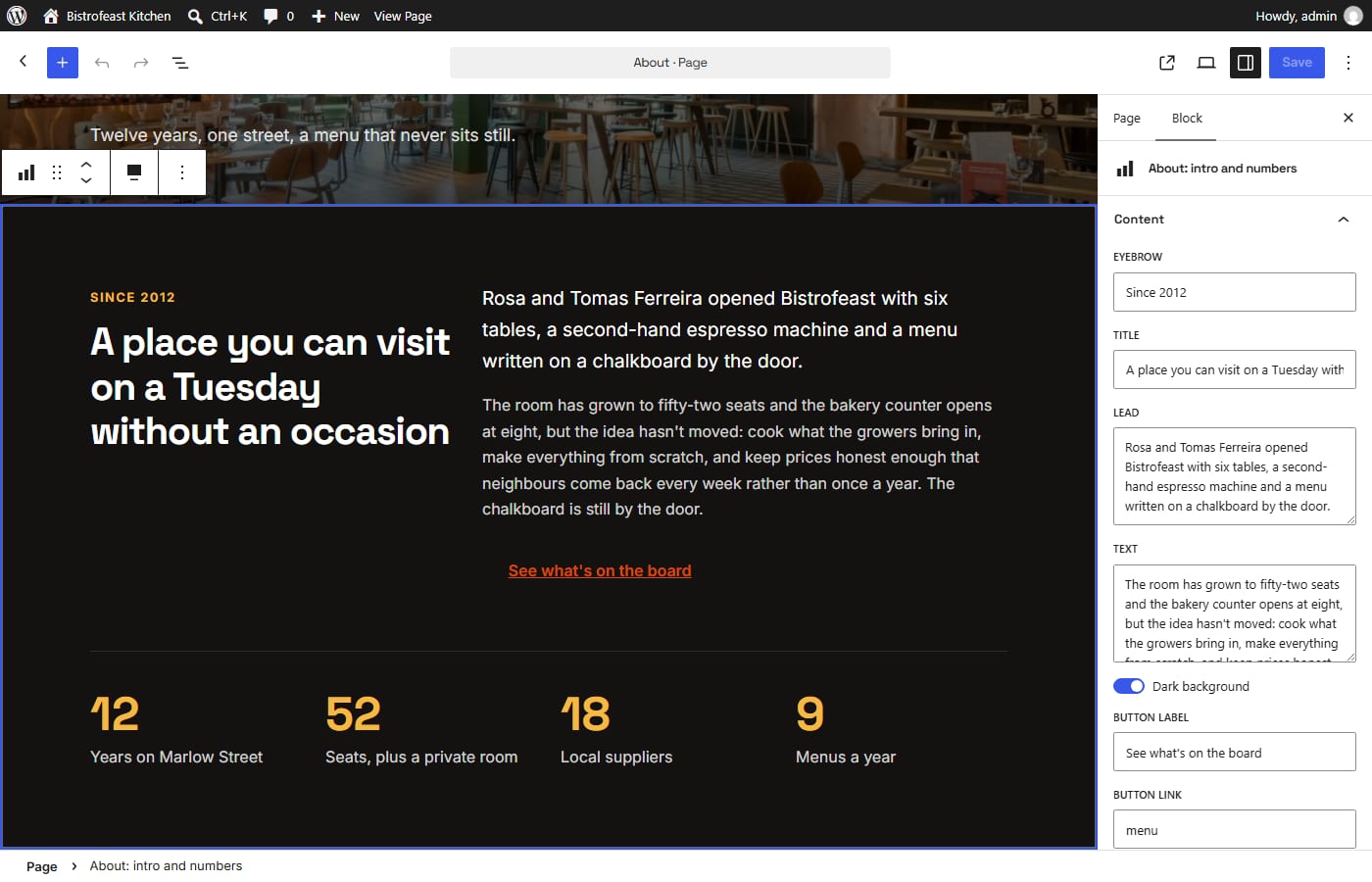
The HTML version stays free, and it’s still the right choice if you’re hand-coding, learning, or hosting a static site. The WordPress theme costs $19 (₹999 in India), less than most developers charge for a single hour, against the days step 3 would take. You can browse every design that has a WordPress version on our WordPress themes page. If you’re not sure WordPress is right for you at all, our comparison of Next.js vs WordPress for a small business may help.
A quick way to decide
- You want to learn WordPress theme development: convert it. Start with the home page, then one inner page, then the menu. You’ll learn the template hierarchy, enqueueing and menus properly.
- It’s a one-page site with no forms, and you’re comfortable with code: convert it. The second half of the work is small.
- A non-technical person will edit the site: don’t convert by hand. Use a WordPress version of the design, or rebuild it in a page builder.
- The site takes bookings, orders or enquiries: whichever route you pick, test every form with a real submission before launch.
- You’re paying someone: ask them to quote for both halves of the work, not just “getting it into WordPress”.
FAQ
Can I convert an HTML template to WordPress for free?
Yes. WordPress is free and a theme is just files, so the only cost is your time. Making the design appear is a few hours of work for most templates; making every page and its content editable takes much longer.
Do I need to know PHP to convert HTML to WordPress?
A little. You need to be comfortable splitting files into header.php and footer.php, adding a few WordPress functions (wp_head, wp_footer, get_theme_file_uri, wp_nav_menu) and editing functions.php. Making content editable needs more WordPress knowledge, such as blocks, custom post types or a field plugin.
Why are my CSS and images not loading after converting?
Because the paths are relative. In WordPress the page is served from your site’s root, so css/style.css points at the wrong place. Load CSS and JavaScript with wp_enqueue_style and wp_enqueue_script, and put get_theme_file_uri() in front of every image path, including ones in data attributes used by JavaScript.
Will my HTML template’s forms work in WordPress?
Usually not on their own. Most HTML templates only simulate sending, or post to a service you have to set up. Connect each form to a form plugin or your own handler, then send a real test message and check it arrives.
Is there a plugin that converts HTML to WordPress automatically?
Some tools and services import static pages, but the result is usually pages of fixed HTML or builder blocks rather than a clean theme with editable menus, posts and forms. Treat any automatic conversion as a starting point and test the editing, forms and mobile layout yourself.
How long does it take to convert an HTML template to WordPress?
In our test, about 30 minutes for the home page of an 11-page template, done by someone who knows it well. A first-timer should allow an afternoon to a day for the home page, and several days to make the whole site editable with working forms.
More from the blog
How to Install an Elementor Template Kit (2026 Guide)
We installed the same kit both ways on a clean WordPress site. Where each kind of kit goes, the steps people miss, and what to do when it looks wrong.
Read article →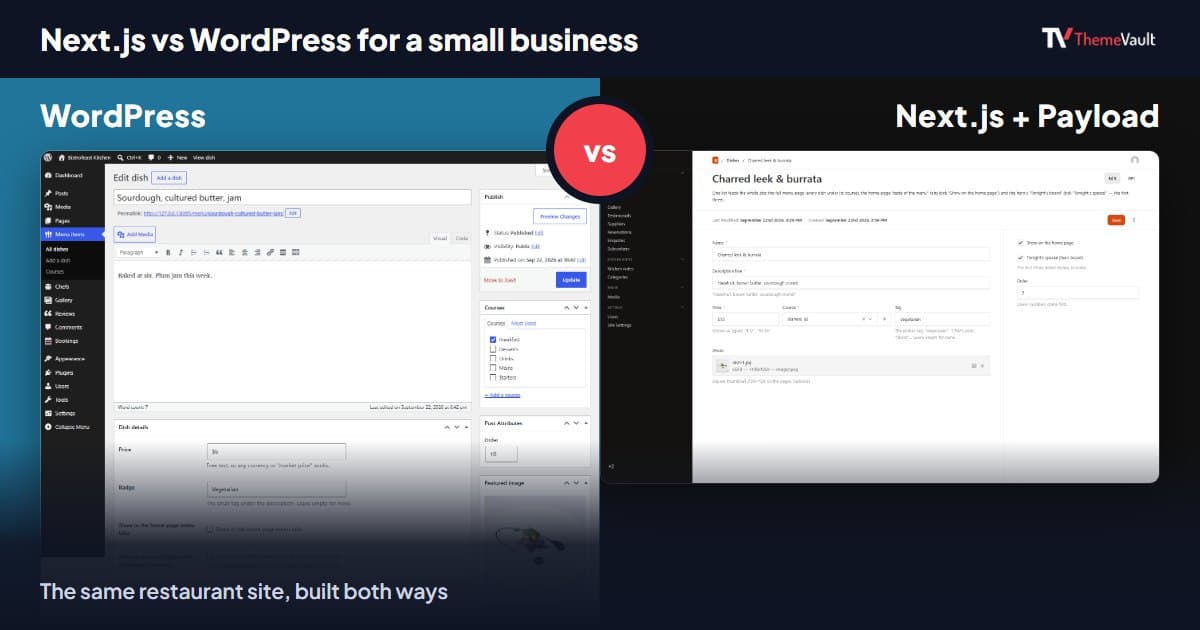
Next.js vs WordPress for a Small Business Website (2026)
We built the same restaurant website as a WordPress theme and as a Next.js template with Payload CMS. Here is where they really differ, and how to choose.
Read article →
How to Build a Portfolio Website That Gets You Hired (2026)
Recruiters give your portfolio about a minute. I tested our portfolio templates the way a hiring manager would: opened the projects, pressed the CV buttons, sent the contact forms. Here is what matter...
Read article →