
Hover effects are one of those small things that make a site feel finished. A picture that reacts when you point at it tells people it does something, and it adds a bit of life to a page without a single extra script. You don’t need a library for any of this. Every effect below is plain CSS, a few lines each, and works in every current browser.
I’ve kept them to effects I would actually put on a client site. Each one comes with a screenshot of the card before and during the hover, and the exact CSS behind it, so you can copy it straight into your stylesheet.
The markup and base styles
All ten use the same HTML: a figure with an image and a caption. Give the figure the shared fx class plus the class of the effect you want.
<figure class="fx fx-zoom">
  <img src="photo.jpg" alt="Describe the picture">
  <figcaption>Project title</figcaption>
</figure>
These base styles crop every picture to the same shape and place the caption along the bottom. The effects build on them.
.fx {
  position: relative;
  overflow: hidden;
  margin: 0;
  aspect-ratio: 4 / 3;
  border-radius: 12px;
  background: #1c2236;
}
.fx img {
  display: block;
  width: 100%;
  height: 100%;
  object-fit: cover;
  transition: transform .5s ease, filter .5s ease;
}
.fx figcaption {
  position: absolute;
  left: 0; right: 0; bottom: 0;
  padding: 1rem 1.25rem;
  color: #fff;
  font: 600 1.05rem/1.3 system-ui, sans-serif;
}
1. Gentle zoom
The one I reach for most. The picture grows a little inside its frame, and because the card hides anything outside its edges, nothing jumps. Keep the scale small; anything past about 1.1 starts to look like a mistake.
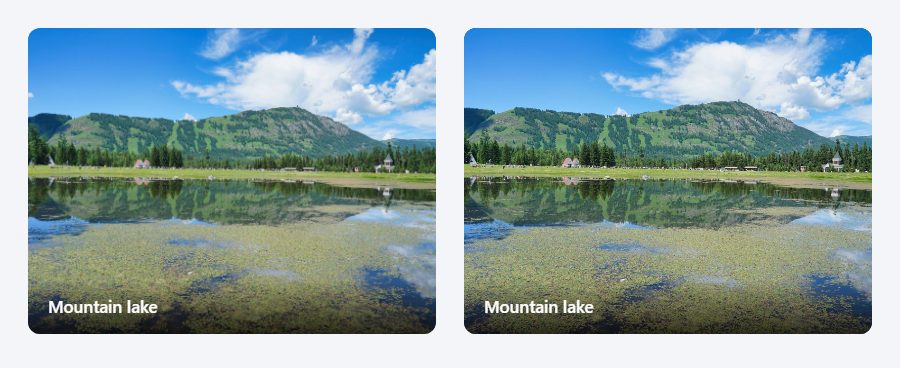
.fx-zoom figcaption { background: linear-gradient(transparent, rgba(0,0,0,.7)); }
.fx-zoom:hover img { transform: scale(1.08); }
2. Caption that slides up
The title sits hidden just below the card and slides up when the pointer arrives. It suits galleries where you want clean thumbnails but still need a label.

.fx-slide figcaption {
  background: rgba(17, 24, 39, .88);
  transform: translateY(100%);
  transition: transform .4s ease;
}
.fx-slide:hover figcaption { transform: translateY(0); }
3. Colour overlay
A brand colour washes over the picture and the title fades in on top. Multiply keeps the photo visible underneath, so it reads as a tint rather than a block of colour.

.fx-tint::after {
  content: "";
  position: absolute;
  inset: 0;
  background: #f1404b;
  mix-blend-mode: multiply;
  opacity: 0;
  transition: opacity .4s ease;
}
.fx-tint figcaption {
  z-index: 1;
  opacity: 0;
  transition: opacity .4s ease;
}
.fx-tint:hover::after { opacity: .8; }
.fx-tint:hover figcaption { opacity: 1; }
4. Black and white to colour
Two lines of CSS. Everything sits in black and white until you point at it. It works well for client logos and team photos, where a grid of full colour can feel busy.

.fx-gray img { filter: grayscale(1); }
.fx-gray:hover img { filter: none; }
5. Blur with a centred title
The picture softens and darkens while a title appears in the middle. Good for cards where the words matter more than the image once someone shows interest.

.fx-blur figcaption {
  top: 0;
  display: grid;
  place-items: center;
  font-size: 1.4rem;
  opacity: 0;
  transition: opacity .4s ease;
}
.fx-blur:hover img { filter: blur(4px) brightness(.55); }
.fx-blur:hover figcaption { opacity: 1; }
6. Shine sweep
A band of light runs across the card, the effect you see on shop product tiles and premium buttons. It only plays while the pointer moves in, so it never gets in the way. (The screenshot freezes it halfway.)

.fx-shine::before {
  content: "";
  position: absolute;
  inset: 0;
  z-index: 1;
  background: linear-gradient(105deg, transparent 40%, rgba(255,255,255,.55) 50%, transparent 60%);
  transform: translateX(-100%);
  transition: transform .8s ease;
}
.fx-shine:hover::before { transform: translateX(100%); }
7. Lift and shadow
No change to the picture at all: the whole card rises a few pixels and casts a softer shadow. It tells people the card is clickable without shouting about it.
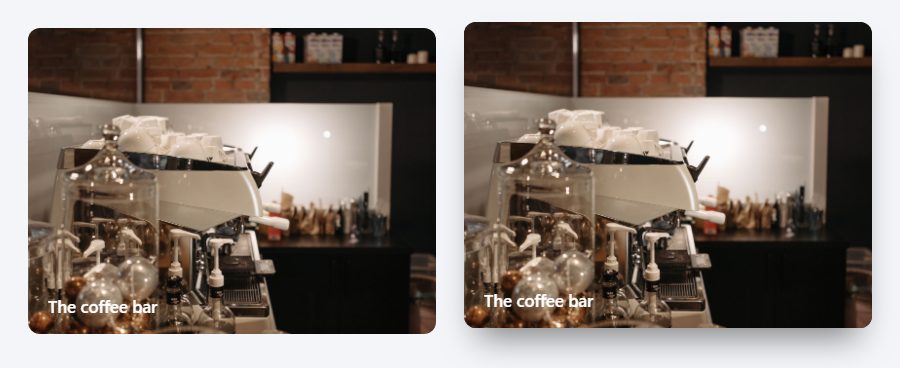
.fx-lift { transition: transform .3s ease, box-shadow .3s ease; }
.fx-lift:hover {
  transform: translateY(-6px);
  box-shadow: 0 22px 32px -14px rgba(0,0,0,.5);
}
8. Circle reveal
A dark circle grows from the centre and the title fades in once it has covered enough of the picture. The short delay on the title is what makes it feel deliberate.

.fx-reveal::after {
  content: "";
  position: absolute;
  inset: 0;
  background: rgba(28, 34, 54, .9);
  clip-path: circle(0% at 50% 50%);
  transition: clip-path .5s ease;
}
.fx-reveal figcaption {
  top: 0;
  z-index: 1;
  display: grid;
  place-items: center;
  opacity: 0;
  transition: opacity .3s ease .15s;
}
.fx-reveal:hover::after { clip-path: circle(75% at 50% 50%); }
.fx-reveal:hover figcaption { opacity: 1; }
9. Frame that draws in
A thin white frame scales into place inside the card while the picture dims slightly. It has a gallery feel, which is why it suits portfolios and art sites.
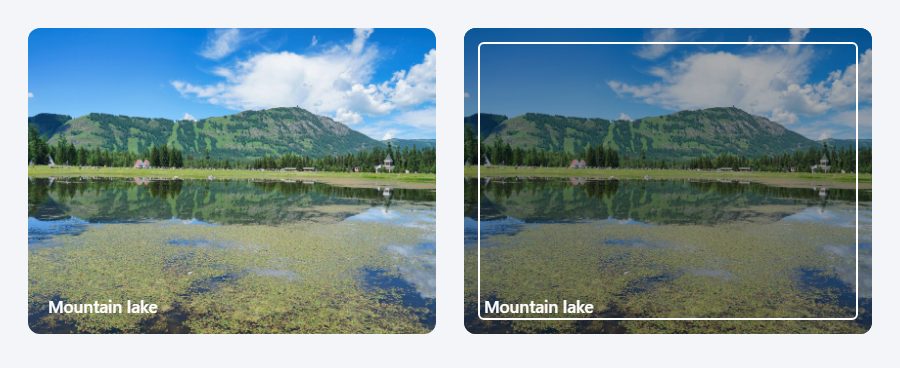
.fx-frame::after {
  content: "";
  position: absolute;
  inset: 14px;
  border: 2px solid #fff;
  border-radius: 6px;
  opacity: 0;
  transform: scale(.9);
  transition: opacity .35s ease, transform .35s ease;
}
.fx-frame:hover::after { opacity: 1; transform: scale(1); }
.fx-frame:hover img { filter: brightness(.7); }
10. Duotone that fades away
The picture starts in a two-colour duotone and returns to full colour on hover. Swap the two gradient colours for your own brand colours and it becomes part of your identity.
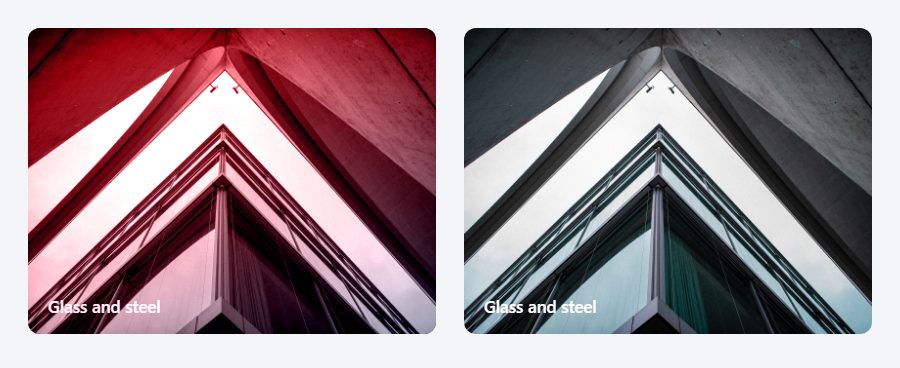
.fx-duo img { filter: grayscale(1) contrast(1.1); }
.fx-duo::after {
  content: "";
  position: absolute;
  inset: 0;
  background: linear-gradient(160deg, #f1404b, #1c2236);
  mix-blend-mode: color;
  transition: opacity .5s ease;
}
.fx-duo:hover img { filter: none; }
.fx-duo:hover::after { opacity: 0; }
Make them work for everyone
Hover is a mouse thing, so three cases need a little extra care. Phones and tablets have no hover at all, which means a caption hidden until hover would never be seen; the first rule shows it straight away on touch screens. People who move around with a keyboard should see the same effect when a link inside the card has focus, which :focus-within handles. And some people switch animations off in their system settings, usually because motion makes them feel unwell, so the last rule respects that choice.
/* Phones and tablets have no hover: show captions straight away */
@media (hover: none) {
  .fx figcaption { opacity: 1; transform: none; }
}

/* Keyboard users: treat focus inside the card like hover, e.g. */
.fx-zoom:focus-within img { transform: scale(1.08); }

/* People who turn off animations in their system settings */
@media (prefers-reduced-motion: reduce) {
  .fx, .fx *, .fx::before, .fx::after { transition: none !important; }
}
A few rules I stick to
- One effect per page section. A gallery where every card does something different looks like a demo, not a website.
- Keep it quick. Between 0.3 and 0.5 seconds feels responsive; anything slower makes people wait for the page.
- Animate
transform,opacityandfilter. Browsers handle those smoothly; animating width, height or margins makes the page stutter. - Never hide anything important behind a hover. If the title or price only appears on hover, phone users won’t see it.
- Give every image a real
altdescription. The effect is decoration; the description is what search engines and screen readers use.
If you’d rather start from a site where this kind of detail is already done, most of our portfolio templates and photography templates use hover effects like these on their project and gallery cards, and you can try each one in its live demo before downloading.
The photos in the screenshots are free stock photos from Pexels.