
Building a website from a template comes down to this: download it, open the folder in a code editor, replace the text, photos and colors with yours, connect the forms, test it, and upload it to a host. None of it needs a programming background, but a few steps trip people up, mostly the forms and the upload.
To keep this practical, I did every step below on one of our free templates, Barbeard, a 21-page barber shop site, and I show the real files and the real edits. The steps are the same for any HTML template. If you haven’t picked one yet, the guide on our home page covers choosing.
What you need before you start
- The template, downloaded and unzipped.
- A code editor. Visual Studio Code is free and works on Windows, Mac and Linux. Notepad works too, but searching across files is what saves the hours.
- Your content: logo, photos, phone number, address, opening hours, prices and the text for each page. Gathering this first is the single biggest time saver.
- A form service account (Step 7) and a host and a domain (Steps 9 and 10). You can sort these out last.
Step 1: Unzip and look around
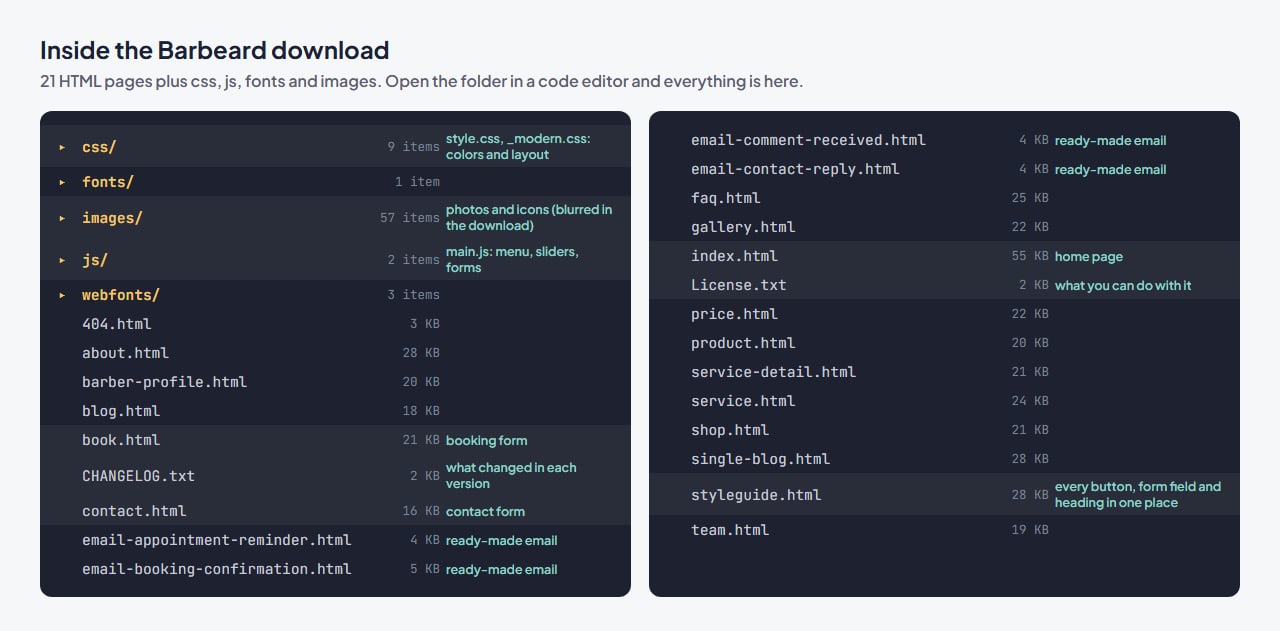
Open the whole folder in your editor (in VS Code: File, Open Folder). Each .html file is one page of the site; index.html is the home page. The css folder holds the look, js the behavior (menus, sliders, forms), and images the pictures.
Two files are worth opening before you change anything. styleguide.html shows every button, heading and form field on one page, so you can see what the design gives you to work with. CHANGELOG.txt says what the current version includes. Also note that the photos in our downloads are blurred stand-ins, not the ones on the live demo; they are there to show the size and shape each picture needs, and you replace them in Step 4.
Step 2: Change the details that appear on every page
Your email, phone number and address sit in the header and footer of every page, so editing them one file at a time is slow and easy to get wrong. In Barbeard, info@barbeard.com appears 76 times across the 21 pages. Use search and replace across all files instead: in VS Code, press Ctrl+Shift+H (Cmd+Shift+H on a Mac), type the old value and the new one, and replace everywhere.
Phone numbers often appear in two forms: the version people read and the version inside a tel: link that makes it tappable on a phone. Barbeard has both +1-202-555-0100 and 1-202-555-0100, so search for the digits and check each match. Do the same for the business name, the street address and the social media links.
For the logo, save yours with the same file name as the one in images and roughly the same proportions, and every page picks it up without touching the code.
Step 3: Rewrite the text, page by page
Go through the pages in the order a visitor would: home, services, prices, about, contact. Replace the headings and paragraphs with your own words, keeping roughly the same length so the layout still fits. A heading that was three words and is now twelve will wrap in ways the design didn’t plan for.
Two habits make a big difference. First, delete any section you can’t fill with something true; a block of invented reviews hurts more than no reviews at all. Second, if you remove a whole page, search all files for its name (for example shop.html) and remove or change every link to it, so nothing leads to a missing page.
Step 4: Replace the photos
The easiest way is to keep the template’s file names: save your photo over the old one with the same name and similar proportions, and the layout stays as designed. A few things to get right:
- Crop to the same shape as the original (a wide banner stays wide, a square stays square).
- Export at a sensible size, around 2,000 pixels wide for full-width banners and much smaller for cards and thumbnails, and compress them. Big camera files make a site slow on a phone.
- Update each image’s
alttext to describe your photo, for examplealt="Beard trim with a straight razor". It helps visitors using screen readers and helps your images appear in search.
Step 5: Change the colors
Every design has one or two main colors. Find the code for the main one (open styleguide.html in a browser, right-click a button, choose Inspect, and read its color), then replace that code across the css folder with your brand color. In Barbeard the main teal is #014d55; it appears nine times, including the variable at the top of _modern.css:
:root { --bbx-gold: #bc9355; --bbx-ink: #111010; --bbx-teal: #014d55; --bbx-ease: cubic-bezier(.2, .7, .2, 1); }Replacing #014d55 with a deep red in all nine places changed the header bar, the headline accent and every button at once. I also changed the headline text in index.html to show how the two edits look together:
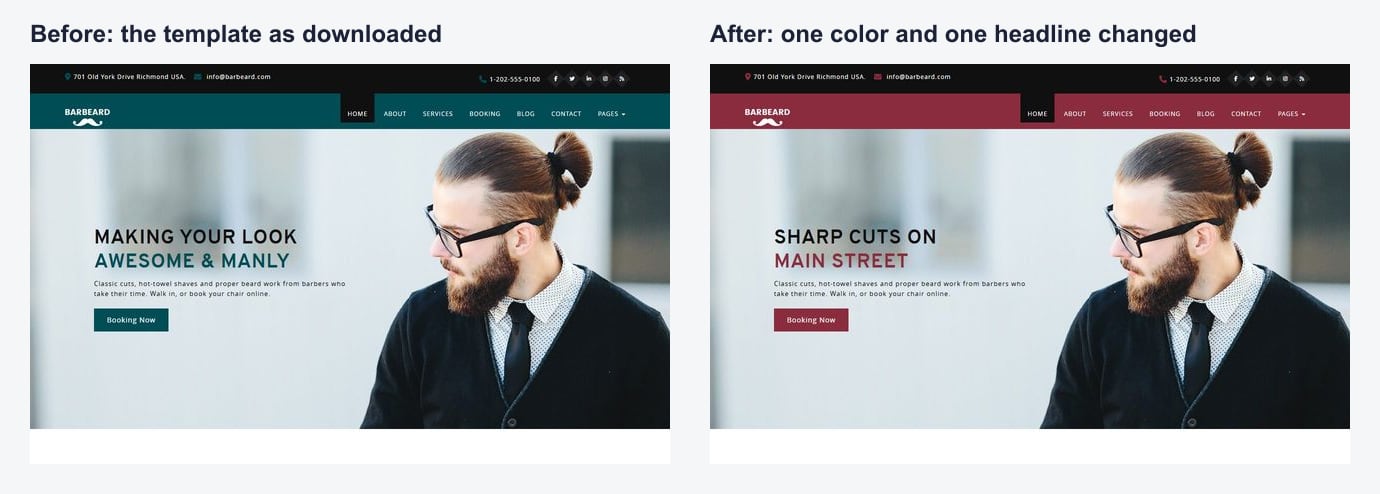
Do the same for the second color if you want to. If a color seems to ignore you, it is usually written in a slightly different form somewhere (in capitals, or as rgb()), so search for that too.
Step 6: Give every page its own title and description
The title and description in each page’s <head> are what Google shows in its results. Templates often use the same title on every page; most of Barbeard’s pages say just “BarBeard”. Give each page its own:
<title>Book a Haircut or Beard Trim | Your Barber Shop, Leeds</title>
<meta name="description" content="Pick a service, a barber and a time, and get a confirmation by email. Walk-ins welcome too.">
Keep titles under about 60 characters and descriptions under about 155, and mention what the page is about and where you are. While you’re in the <head>, swap the favicon (the small icon in the browser tab) for your own.
Step 7: Connect the forms
This is the step most people miss. An HTML template can’t send email by itself, because there is no server code behind it. Barbeard’s forms check that every field is filled in and show a confirmation, but nothing is sent anywhere until you connect them to a form service such as Formspree or Basin, or to a mail script your host provides.
With a form service, you create a form in your account and get an address to send it to. Add that address and method="POST" to the form’s opening tag, keeping everything else on the tag as it is:
<form id="tv-booking-form" class="tv-booking-form" action="https://formspree.io/f/your-form-id" method="POST" data-bbx-form novalidate …>Because the template’s script handles the form on the page (so it can show the confirmation without leaving it), it also needs to send the data. In Barbeard’s js/main.js, find the two lines that show the thank-you message and reset the form, and put this in front of them:
if (form.getAttribute("action")) {
    note.textContent = "Sending…";
    fetch(form.action, { method: "POST", body: new FormData(form), headers: { Accept: "application/json" } })
        .then(function (r) { if (!r.ok) throw r; note.innerHTML = form.getAttribute("data-success"); form.reset(); })
        .catch(function () { note.textContent = "Sorry, that didn't go through. Please call us instead."; });
    return;
}
I tested exactly this change on a copy of Barbeard: the booking form sent every field (date, time, service, barber, name, phone and email) and then showed its usual confirmation. Forms without an action keep working as before, so you can connect them one at a time.
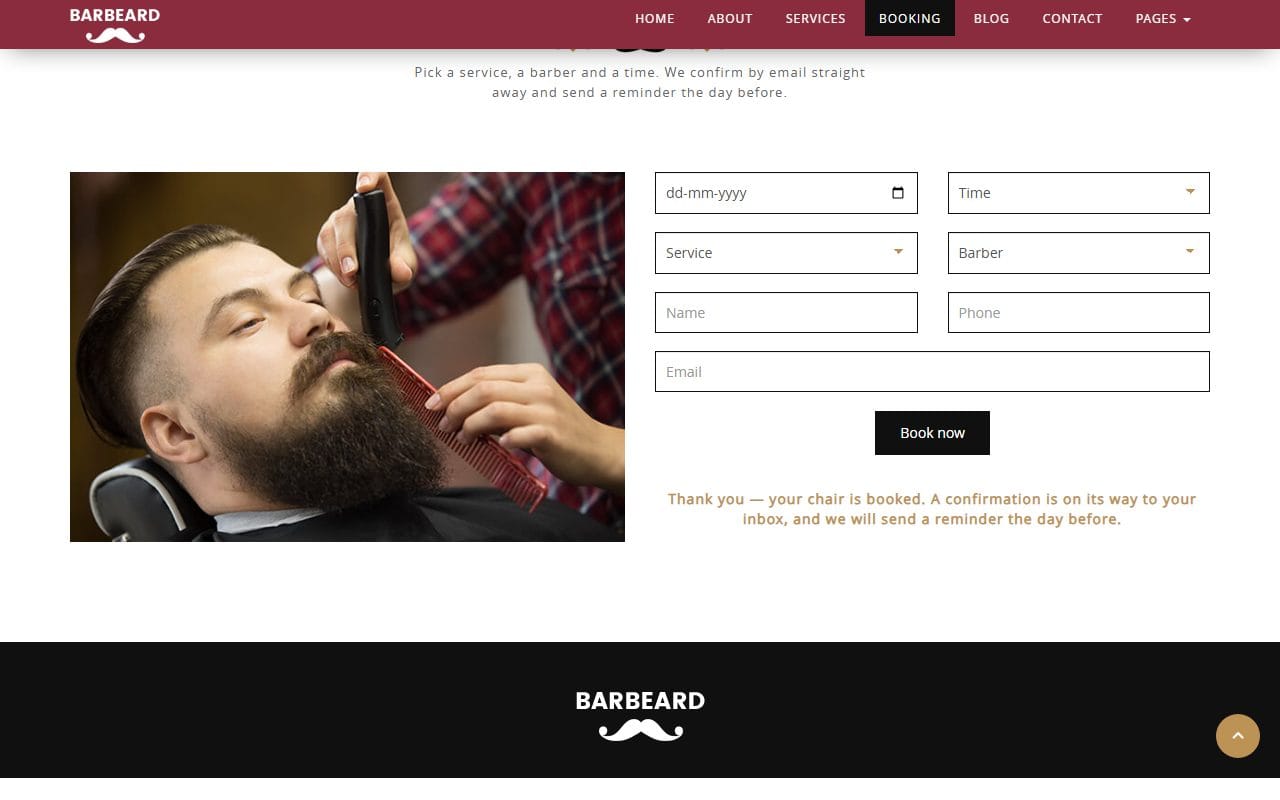
Barbeard also comes with ready-made emails (email-booking-confirmation.html, email-appointment-reminder.html and others) in the same style as the site. If your form service or booking tool lets you send your own HTML emails, use these as the starting point so your messages match the website.
Step 8: Test it on your computer and your phone
You can open index.html straight from the folder, but a small local server is closer to the real thing. In VS Code, the free Live Server extension adds a “Go Live” button that opens the site in your browser and reloads it every time you save. Then go through this list:
- Click every menu item and every button. Nothing should lead to a missing page or back to the template’s sample content.
- Send each form to yourself and check the email arrives.
- Check it on a real phone: the menu, the forms and the longest page. The easiest way is to upload a test copy (Step 9) and open its free address on your phone before you connect your domain.
- Search all files one last time for the template’s sample name, email and phone number.
Step 9: Upload it to a host
An HTML site is just files, so it runs almost anywhere. Two common routes:
- Static hosting such as Netlify, Cloudflare Pages or GitHub Pages. With Netlify and Cloudflare Pages you can drag the template folder into the browser and the site is online a minute later, with a free address you can use until your domain is connected. For a small business site, the free plans are usually enough.
- Ordinary web hosting with a control panel such as cPanel. Open the File Manager, go into
public_html, upload the template as a ZIP and extract it there. Make sureindex.htmlends up directly insidepublic_html, not in a subfolder, or your home page won’t load at your domain.
Step 10: Connect your domain and tell Google
Your host will tell you which DNS records to add where you bought the domain, usually one or two entries that take minutes to an hour to work. Static hosts and most control panels then set up HTTPS (the padlock) for you; check that the site opens with https:// before you share it.
Finally, add the site to Google Search Console and submit a sitemap so your pages get found sooner. A static site doesn’t make one for you, but a sitemap is just a list of your pages in a file called sitemap.xml:
<?xml version="1.0" encoding="UTF-8"?>
<urlset xmlns="http://www.sitemaps.org/schemas/sitemap/0.9">
  <url><loc>https://www.yourbarbershop.com/</loc></url>
  <url><loc>https://www.yourbarbershop.com/book.html</loc></url>
  <url><loc>https://www.yourbarbershop.com/price.html</loc></url>
</urlset>
Making your own website template instead?
If you landed here because you want to create a template from scratch rather than use one, the order I follow is: decide the pages and what each one has to do, sketch them (my post on why wireframing is important covers this), set up colors, fonts and spacing as CSS variables, build the home page completely, then reuse its parts for the other pages. Test on real phones as you go, not at the end, and finish with a style guide page and real sample text so whoever uses it can see how it is meant to work.
FAQ
Do I need to know HTML to use a website template?
Only the basics. Most of the work is replacing text and images, which means finding the right line in a file and typing over it. Search across files does most of the hard part. If you can follow the steps above, you can do it.
How long does it take to build a website from a template?
With your text and photos ready, a small business site of five or six pages usually takes a day or two, including connecting the forms and uploading. Gathering the content is what takes longest.
Can I build a website for a client with a free template?
Yes. Our free HTML templates can be used for client work. The footer credit link stays unless you remove it with a one-time payment or a Pro plan; the license page has the details.
Why doesn’t my contact form send emails?
Because an HTML site has no server code to send them. Connect the form to a form service or your host’s mail script as in Step 7, then send yourself a test.
Can I move to WordPress later?
Yes. Your text and photos carry over to any platform, and several of our most popular designs also come as WordPress themes, so you can keep the same look while moving to a dashboard.
More from the blog

How to Build a Portfolio Website That Gets You Hired (2026)
Recruiters give your portfolio about a minute. I tested our portfolio templates the way a hiring manager would: opened the projects, pressed the CV buttons, sent the contact forms. Here is what matter...
Read article →
Free Art Gallery Website Templates (2026): 6 Responsive Picks
Six free, responsive art gallery and photography templates you can download today. I checked each live demo rather than the feature lists — here is which ones have a working lightbox, which use masonr...
Read article →
Landing Page Design: 9 Rules That Get More Sign-ups (2026)
Nine landing page design rules, shown on two real landing templates, plus how to test changes and when you need a landing page instead of a home page.
Read article →